The billing module typically handles the functionalities related to managing and processing payments, invoices, and billing information. It facilitates the financial aspects of the application's usage or services, including:
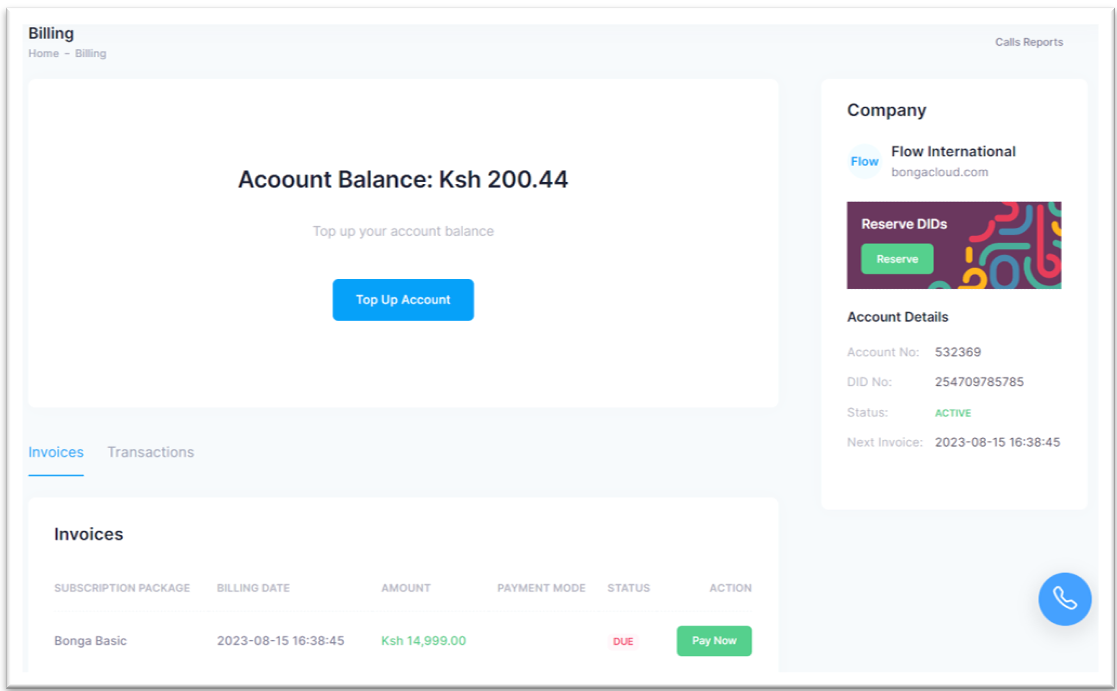
- Manage your account balance: Your “credit” or talk time balance.
- Administer Invoices: view and pay any pending subscription invoices.
- Control transactions: a list of all previous transactions made.
- Reserve DIDs: Keep your number identity.
- Renew Subscription: pay your monthly subscription.
All automated payments within Bonga Cloud are currently being done through MPESA by Safaricom LTD (a mobile money service available in some countries) via a SIM Toolkit (STK) push, which is a mobile technology feature that allows interactive messages or commands to be sent from a service provider's server to a user's SIM card.
It's important to note that STK push functionality may vary depending on the capabilities of the SIM card, the mobile device, and the specific implementation by the service provider. Hence, manual MPESA payment options can be used by following the steps below at any payment point within Bonga Cloud:
- Go to the MPESA menu on your phone.
- Select Lipa na MPESA then Paybill and tap OK.
- Select Enter Business Number and enter as provided and tap OK.
- Select Account Number and enter as provided and tap OK.
- Enter the Amount you wish to pay as provided and tap OK.
- Enter your PIN and tap OK.
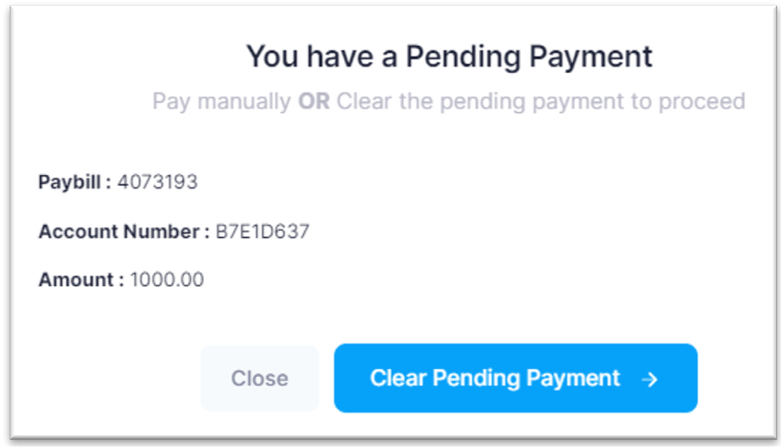
Please note specific information for each MPESA payment i.e. The Business Number, Account Number and Amount are system-generated while making the payments.
Occasionally, you may have a pending transaction within Bonga Cloud as you attempt to initiate a new transaction. In such situations, you will be expected to either process the initial transaction manually or cancel it (by clicking on the Clear Pending Payment button) before proceeding with your new transaction.
¶ Account Balance
Your account balance will be consumed to make outgoing calls. To top up your account balance, follow the steps below:
Step 1: Click on the Top Up Account button located at the center of the billing page.

Step 2: A pop up will be displayed that allows you to input the desired amount and your MPESA number. After providing this information, click on the Submit button, otherwise, click on the Cancel button to abandon the transaction.
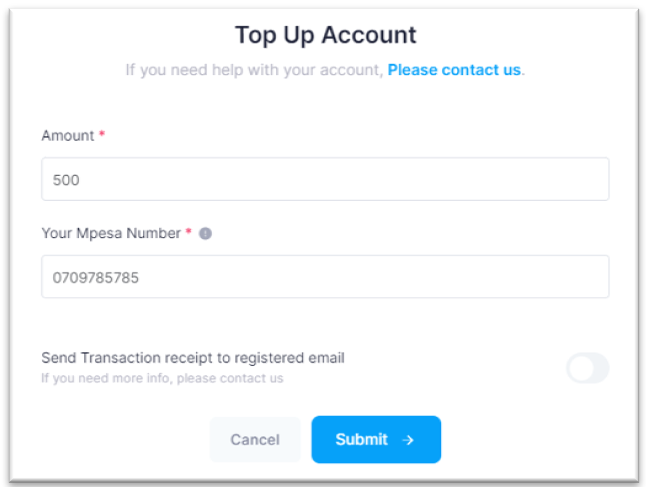
Step 3: Upon clicking on the Submit button, you will receive an STK push on the provided MPESA number to complete your transaction. If you are unable to complete the transaction via the STK push, a manual method is offered for your convenience.
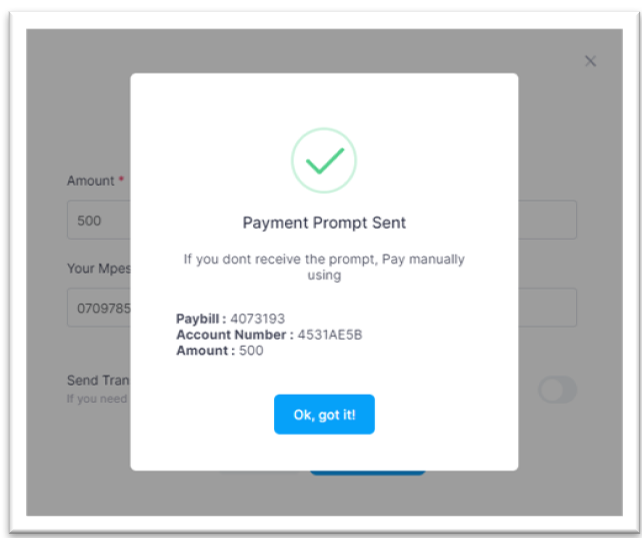
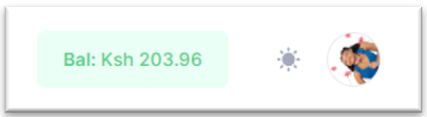
Step 4: Click on the OK, got itbutton to dismiss the pop up. Your top up balance will immediately reflect on your Bonga Cloud account wallet which can be viewed on the billing page or at the top right of your page.
¶ Reserve DID
Within the Bonga Cloud ecosystem, you have the option to reserve your DID (Direct Inward Dialing) number for a renewable period of 3 months, even if you are not actively using it. This allows you to associate the DID with your account, which can be useful if you need to deactivate your account for an extended or unforeseen period.
To make the most of this feature, follow the steps below:
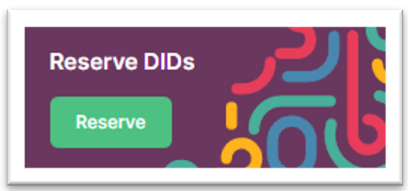
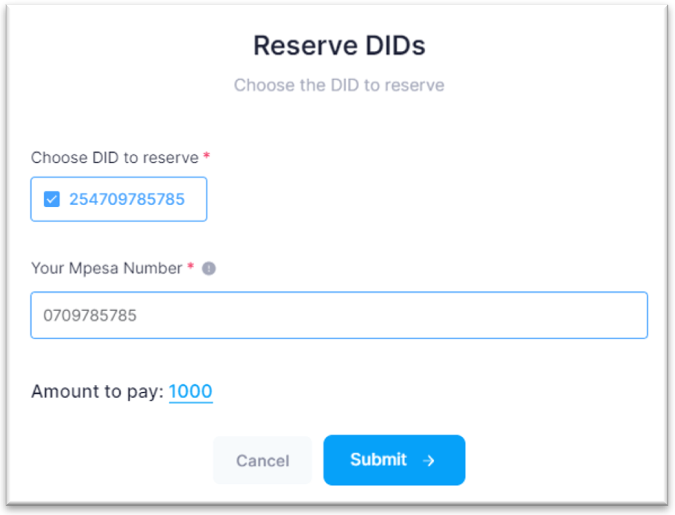
Step 1: Click on the Reserve button within the Company details section. A pop up will appear containing all the DIDs currently associated with your account, against them will be a checkbox for you to choose the specific one(s) you would like to reserve.
Step 2: Choose the desired DID(s) to reserve and provide your MPESA number, the amount to pay will be automatically displayed for your convenience.
Step 3: Click on the Submit button to process your payment. An STK push will be sent to the provided number as well as availed manual MPESA payments in the event you cannot complete the payments via STK push.

Step 4: Click on the OK, got it button to dismiss the pop up.
¶ Renew Subscription
This payment holds significant importance within Bonga Cloud as it manages your existing license plan. All licenses are renewed monthly, precisely 30 days from the initial payment. During your subscription renewal, you can choose to upgrade or downgrade your package.
To renew your subscription, follow the steps below:
Step 1: Click on the Renew Subscription button, located within your Account Details section.
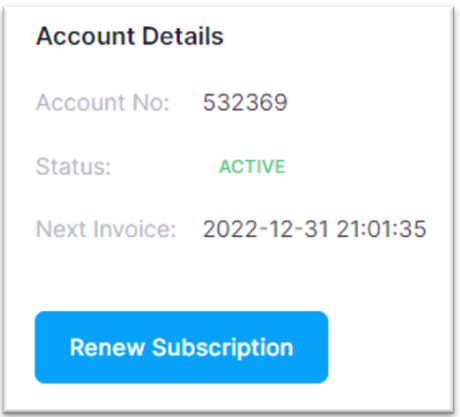
Step 2: Input your MPESA number and select a package.

Step 3: Click on the Submit button to process your payment. An STK push will be sent to the provided number as well as availed manual MPESA payments in the event you cannot complete the payments via STK push.
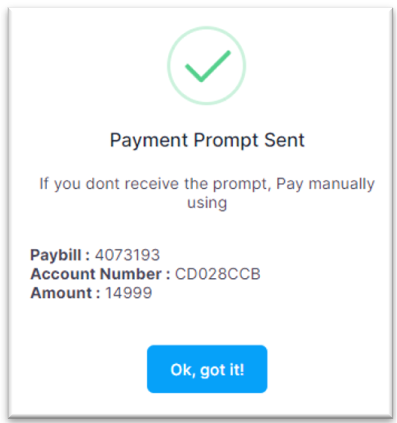
Step 4: Click on the OK, got it button to dismiss the popup.
¶ Invoice and Transactions
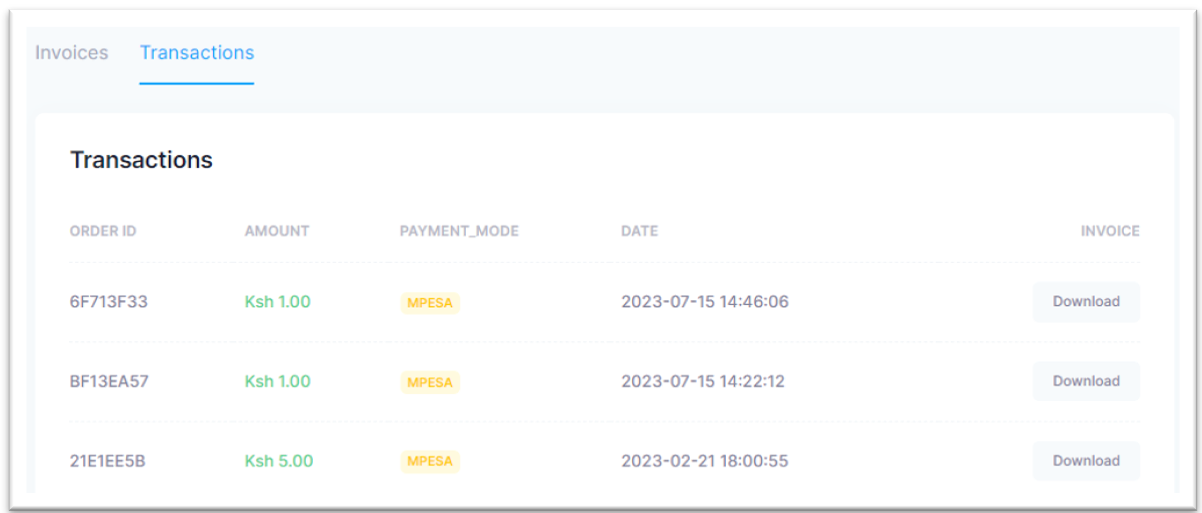
Bonga Cloud ensures that you receive a clear and predictable monthly invoice. You can easily find it in the Invoices section, where it displays the due date, status, package name, and amount. To make a payment, simply click on the Pay Now button and follow the Renew Subscription process.
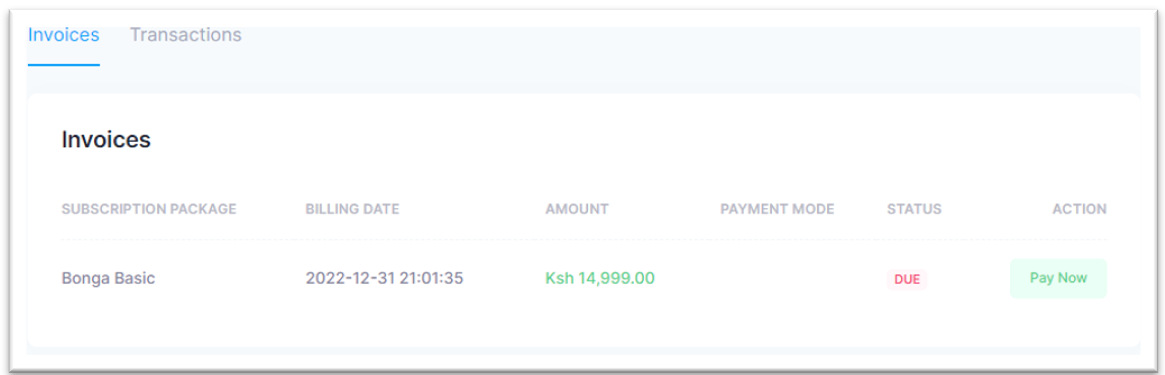
The transaction section in Bonga Cloud provides a record of all your payments made within the platform. This information serves accounting purposes, displaying details such as the transaction ID, payment amount, mode, and date. Moreover, you have the option to download or print the receipt by simply clicking the Download button.